
Builder's Hut
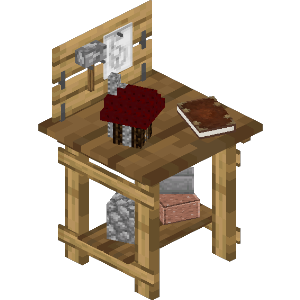
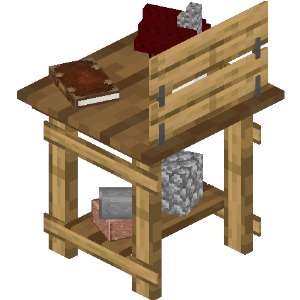
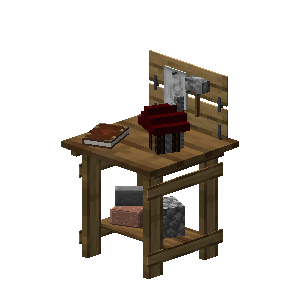
Before you build any other building, you must build the Builder's Hut Builder's Hut Builder's Hut Builder's Hut Builder's Hut Builder's Hut Builder's Hut Builder's Hut Builder's Hut Builder's Hut Builder's Hut Builder's Hut Builder's Hut Builder's Hut Builder's Hut Builder's Hut Builder's Hut . If the Builder's Hut Builder's Hut Builder's Hut Builder's Hut Builder's Hut Builder's Hut Builder's Hut Builder's Hut Builder's Hut Builder's Hut Builder's Hut Builder's Hut Builder's Hut Builder's Hut Builder's Hut Builder's Hut Builder's Hut is not built, the Builder Builder Builder Builder Builder Builder Builder Builder Builder Builder Builder Builder Builder Builder Builder Builder Builder cannot build other buildings.
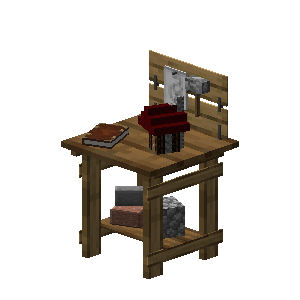
Before you choose a place to build the Builder's Hut Builder's Hut Builder's Hut Builder's Hut Builder's Hut Builder's Hut Builder's Hut Builder's Hut Builder's Hut Builder's Hut Builder's Hut Builder's Hut Builder's Hut Builder's Hut Builder's Hut Builder's Hut Builder's Hut , take into account the distances among the other possible building sites and obstacles like water, trees, caves, mountains, lava sources, etc. After you have selected a place for the hut, you have to craft the Builder's Hut Builder's Hut Builder's Hut Builder's Hut Builder's Hut Builder's Hut Builder's Hut Builder's Hut Builder's Hut Builder's Hut Builder's Hut Builder's Hut Builder's Hut Builder's Hut Builder's Hut Builder's Hut Builder's Hut block and place it with your Build Tool Build Tool Build Tool Build Tool Build Tool Build Tool Build Tool Build Tool Build Tool Build Tool Build Tool Build Tool Build Tool Build Tool Build Tool Build Tool Build Tool . Once the hut is placed, the Builder Builder Builder Builder Builder Builder Builder Builder Builder Builder Builder Builder Builder Builder Builder Builder Builder will be automatically assigned (or you can manually assign one with the best traits for a Builder Builder Builder Builder Builder Builder Builder Builder Builder Builder Builder Builder Builder Builder Builder Builder Builder if you changed this in the settings tab in the Town Hall Town Hall Town Hall Town Hall Town Hall Town Hall Town Hall Town Hall Town Hall Town Hall Town Hall Town Hall Town Hall Town Hall Town Hall Town Hall Town Hall ).
Now you will have to issue the build assignment so the Builder Builder Builder Builder Builder Builder Builder Builder Builder Builder Builder Builder Builder Builder Builder Builder Builder can build their own hut first. The Builder Builder Builder Builder Builder Builder Builder Builder Builder Builder Builder Builder Builder Builder Builder Builder Builder will ask for the materials they need. Make sure to check the Resource Scroll Resource Scroll Resource Scroll Resource Scroll Resource Scroll Resource Scroll Resource Scroll Resource Scroll Resource Scroll Resource Scroll Resource Scroll Resource Scroll Resource Scroll Resource Scroll Resource Scroll Resource Scroll Resource Scroll or the Required Resources tab of the Builder's Hut Builder's Hut Builder's Hut Builder's Hut Builder's Hut Builder's Hut Builder's Hut Builder's Hut Builder's Hut Builder's Hut Builder's Hut Builder's Hut Builder's Hut Builder's Hut Builder's Hut Builder's Hut Builder's Hut GUI to see what materials the Builder Builder Builder Builder Builder Builder Builder Builder Builder Builder Builder Builder Builder Builder Builder Builder Builder is requesting for any build/upgrade. Any material in the list that is still missing will be in red letters.
Once the Builder's Hut Builder's Hut Builder's Hut Builder's Hut Builder's Hut Builder's Hut Builder's Hut Builder's Hut Builder's Hut Builder's Hut Builder's Hut Builder's Hut Builder's Hut Builder's Hut Builder's Hut Builder's Hut Builder's Hut is built you can now build anything you want, like worker huts, buildings, decorations, or your own schematics.
- Note: The Builder Builder Builder Builder Builder Builder Builder Builder Builder Builder Builder Builder Builder Builder Builder Builder Builder can only build or upgrade any other hut up to the level of their own hut. So, in order for the Builder Builder Builder Builder Builder Builder Builder Builder Builder Builder Builder Builder Builder Builder Builder Builder Builder to upgrade any building, the Builder's Hut Builder's Hut Builder's Hut Builder's Hut Builder's Hut Builder's Hut Builder's Hut Builder's Hut Builder's Hut Builder's Hut Builder's Hut Builder's Hut Builder's Hut Builder's Hut Builder's Hut Builder's Hut Builder's Hut must be upgraded first. Then the Builder Builder Builder Builder Builder Builder Builder Builder Builder Builder Builder Builder Builder Builder Builder Builder Builder will be able to upgrade any other building(s).
Hints and Tips
For the placement of the Builder's Hut Builder's Hut Builder's Hut Builder's Hut Builder's Hut Builder's Hut Builder's Hut Builder's Hut Builder's Hut Builder's Hut Builder's Hut Builder's Hut Builder's Hut Builder's Hut Builder's Hut Builder's Hut Builder's Hut , you should consider having the hut in the middle of where you plan to have the rest of your buildings so that the Builder Builder Builder Builder Builder Builder Builder Builder Builder Builder Builder Builder Builder Builder Builder Builder Builder has less of a distance to walk between their hut and the build sites.
The Builder Builder Builder Builder Builder Builder Builder Builder Builder Builder Builder Builder Builder Builder Builder Builder Builder will not start another build assignment until they have finished the current one.
You can go into the Town Hall Town Hall Town Hall Town Hall Town Hall Town Hall Town Hall Town Hall Town Hall Town Hall Town Hall Town Hall Town Hall Town Hall Town Hall Town Hall Town Hall it's GUI and click on the work orders tab to cancel builds as well as arrange the priorities of the other build orders you have there. If you cancel a work order and it was being built already, if you assign the build order again, the Builder Builder Builder Builder Builder Builder Builder Builder Builder Builder Builder Builder Builder Builder Builder Builder Builder will continue where they left off.
If the Builder Builder Builder Builder Builder Builder Builder Builder Builder Builder Builder Builder Builder Builder Builder Builder Builder removes a block while building and/or upgrading, they will keep it in their inventory and dump any items in their inventory at the end of a build into the Builder's Hut Builder's Hut Builder's Hut Builder's Hut Builder's Hut Builder's Hut Builder's Hut Builder's Hut Builder's Hut Builder's Hut Builder's Hut Builder's Hut Builder's Hut Builder's Hut Builder's Hut Builder's Hut Builder's Hut inventory.
Interface
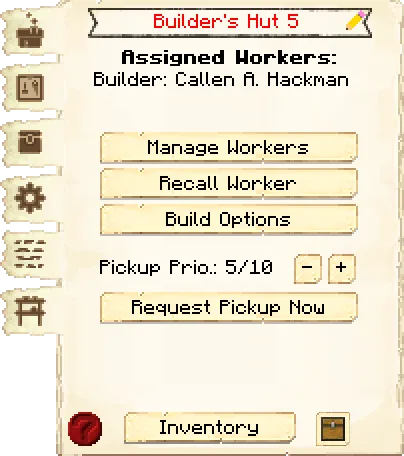
The first tab of the GUI is the main interface.
- Header:
- Building Name: Shows the name of the building, including the level of the building.
- Pencil: Allows you to rename the building. The level of the building will always be listed after the name.
- Assigned Workers: Tells you the workers assigned to this building.
- Controls:
- Manage Workers: Lets you change which workers are assigned to work at this hut. Note: this only works if you have turned the worker hiring mode, in the Town Hall Town Hall Town Hall Town Hall Town Hall Town Hall Town Hall Town Hall Town Hall Town Hall Town Hall Town Hall Town Hall Town Hall Town Hall Town Hall Town Hall or in the hut itself, to manual, otherwise citizens will be hired automatically.
- Recall Workers: Recalls the workers at this building to the building. You might use it if they are stuck somewhere, you want to see what they have, or want to give them something directly.
- Build Options: Lets you create a build, upgrade, or repair build order for this hut. To learn more about the building system, please visit the Builder Builder Builder Builder Builder Builder Builder Builder Builder Builder Builder Builder Builder Builder Builder Builder Builder page.
- Request System:
- Pickup Priority: You can set the priority that a Courier Courier Courier Courier Courier Courier Courier Courier Courier Courier Courier Courier Courier Courier Courier Courier Courier will visit this hut and pick up items (when the worker at this hut issues a request), or you can tell Couriers Couriers Couriers Couriers Couriers Couriers Couriers Couriers Couriers Couriers Couriers Couriers Couriers Couriers Couriers Couriers Couriers to never visit this hut to pick up items. (For the pickup priority, 10 is the highest.)
- Request Pickup Now: You can click this button in order to tell any available Courier Courier Courier Courier Courier Courier Courier Courier Courier Courier Courier Courier Courier Courier Courier Courier Courier to come and pick up all the items from the building
- Footer:
- Info Button: Some huts have an in-game guide. Press the ? button to access it.
- Inventory: Here you can access the hut block's storage, where the worker at this hut takes and deposits materials. They will also use any that were placed in the hut when it was built or upgraded, so be sure to check those as well!
- Chest Icon: Click this button to see all the items in the hut's storage (including the hut block's inventory and any racks that came with the hut). Clicking the ? button next to an item's count will highlight the storage container it's in.
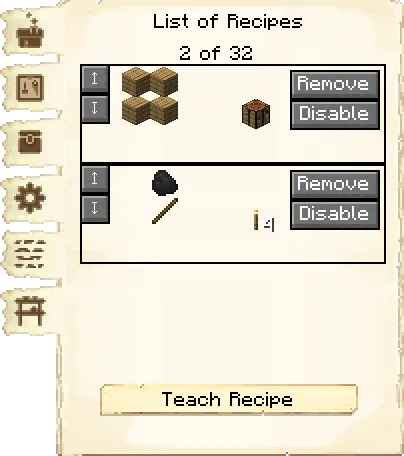
The second tab of the GUI is the crafting recipes.
Here you can see all the crafting recipes this building knows.
The arrows allow you to move them up or down in priority. You are also able to disable or remove specific recipes.
- Teach Recipe: When clicking teach recipe, it opens a crafting grid which allows you to teach this hut crafting recipes (not the worker).
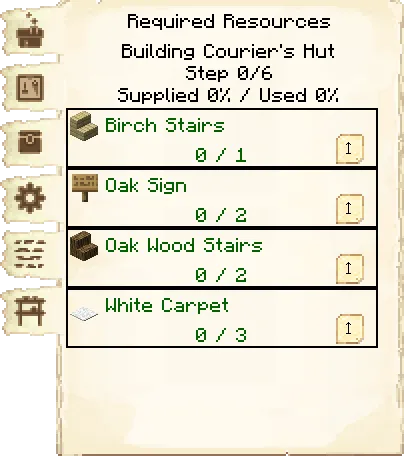
The third tab of the GUI is the required resources.
These are the resources that the worker will need for the workorder they are currently working on.
- Current project: The top line tells you which work order is being worked on and its level.
- Step: What step of the project the worker is on.
- Supplied % / Used %: How much of the needed resources are in the building inventory, and how many of the resources have been placed.
- Items: Each needed item is displayed, along with how many of that item is in inventory, and how many are needed. These amounts will change as they place blocks and will show only what blocks the worker still needs to place. The block in black are in their inventory. The blocks in red are the ones neither you nor the Builder's Hut Builder's Hut Builder's Hut Builder's Hut Builder's Hut Builder's Hut Builder's Hut Builder's Hut Builder's Hut Builder's Hut Builder's Hut Builder's Hut Builder's Hut Builder's Hut Builder's Hut Builder's Hut Builder's Hut has in their inventory. The blocks in green are ones you have in inventory but the builder needs. Clicking the up arrow next to the item will automatically remove that item from your inventory and place it into the Builder's Hut Builder's Hut Builder's Hut Builder's Hut Builder's Hut Builder's Hut Builder's Hut Builder's Hut Builder's Hut Builder's Hut Builder's Hut Builder's Hut Builder's Hut Builder's Hut Builder's Hut Builder's Hut Builder's Hut its inventory.
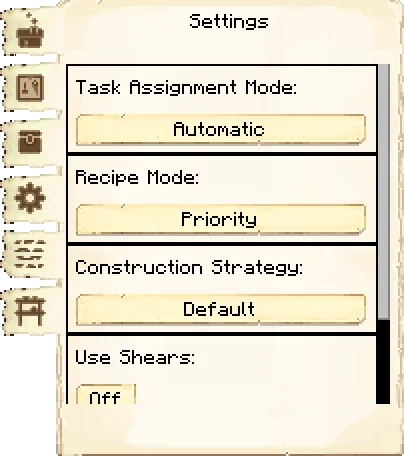
The fourth tab of the GUI is the settings.
- Task Assignment Mode: Here you can set your Builder Builder Builder Builder Builder Builder Builder Builder Builder Builder Builder Builder Builder Builder Builder Builder Builder to Manual or Automatic mode (Automatic by default).
- Automatic: The Builder Builder Builder Builder Builder Builder Builder Builder Builder Builder Builder Builder Builder Builder Builder Builder Builder chooses which build order they'll complete next themselves (based on the order of the build requests in the Town Hall Town Hall Town Hall Town Hall Town Hall Town Hall Town Hall Town Hall Town Hall Town Hall Town Hall Town Hall Town Hall Town Hall Town Hall Town Hall Town Hall GUI's work orders tab).
- Manual: You choose their next build order yourself by clicking Select next to the build order's name.
- Recipe Mode: This is unlocked by researching Warehouse Master Warehouse Master Warehouse Master Warehouse Master Warehouse Master Warehouse Master Warehouse Master Warehouse Master Warehouse Master Warehouse Master Warehouse Master Warehouse Master Warehouse Master Warehouse Master Warehouse Master Warehouse Master Warehouse Master in the University University University University University University University University University University University University University University University University University . This changes how multiple recipes for the same item are prioritized.
- Priority: This is the default setting. The hut will try to use recipes that are higher up in their recipe list first.
- Warehouse Stock: The hut will look in the Warehouse Warehouse Warehouse Warehouse Warehouse Warehouse Warehouse Warehouse Warehouse Warehouse Warehouse Warehouse Warehouse Warehouse Warehouse Warehouse Warehouse first to see what resource you have more of before deciding what recipe it will use.
- Construction Strategy: This is unlocked by researching Builder Modes Builder Modes Builder Modes Builder Modes Builder Modes Builder Modes Builder Modes Builder Modes Builder Modes Builder Modes Builder Modes Builder Modes Builder Modes Builder Modes Builder Modes Builder Modes Builder Modes in the University University University University University University University University University University University University University University University University University . This allows you to change how the Builder Builder Builder Builder Builder Builder Builder Builder Builder Builder Builder Builder Builder Builder Builder Builder Builder builds, reducing pathfinding and speeding up builds (especially on large builds). Any one of these can be set in the Structurize config, but once the Builder Modes Builder Modes Builder Modes Builder Modes Builder Modes Builder Modes Builder Modes Builder Modes Builder Modes Builder Modes Builder Modes Builder Modes Builder Modes Builder Modes Builder Modes Builder Modes Builder Modes research is done in the University University University University University University University University University University University University University University University University University , the one set here takes precedence.
- Default: The default row-by-row pattern.
- Hilbert: Hilbert does this pattern, with a little difference to work for rectangular areas.
- Inward Circle: Blocks are placed like a square spiral from the outside in.
- Inward Circle Height 1-4: Same as
inwardcircle, but configurable to go X amount of blocks up as well. - Random: Blocks are placed in an entirely random order. Note that this slows down builds.
- Use Shears: Whether the Builder Builder Builder Builder Builder Builder Builder Builder Builder Builder Builder Builder Builder Builder Builder Builder Builder will use shears to harvest certain blocks like leaves or grass.
- Fill Block: Here you can select what block the Builder Builder Builder Builder Builder Builder Builder Builder Builder Builder Builder Builder Builder Builder Builder Builder Builder uses to fill in holes/gaps in the schematic. The default is the dirt block.
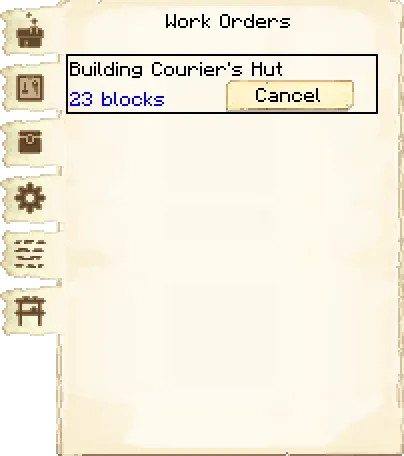
The fifth tab of the GUI is the workorders.
This page shows you what work orders have been assigned to this Builder's Hut Builder's Hut Builder's Hut Builder's Hut Builder's Hut Builder's Hut Builder's Hut Builder's Hut Builder's Hut Builder's Hut Builder's Hut Builder's Hut Builder's Hut Builder's Hut Builder's Hut Builder's Hut Builder's Hut , along with the distance away from the building. You can assign or cancel work orders here.
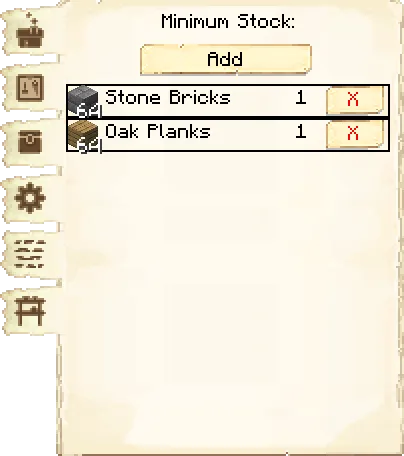
The sixth tab of the GUI is the minimum stock.
Use this button to tell the Builder's Hut Builder's Hut Builder's Hut Builder's Hut Builder's Hut Builder's Hut Builder's Hut Builder's Hut Builder's Hut Builder's Hut Builder's Hut Builder's Hut Builder's Hut Builder's Hut Builder's Hut Builder's Hut Builder's Hut to keep a minimum stock on hand. Set items will be displayed above the button.
Builder's Hut
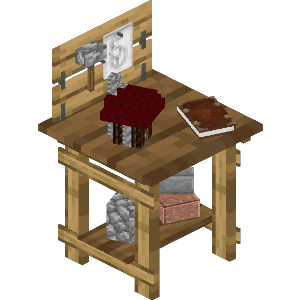
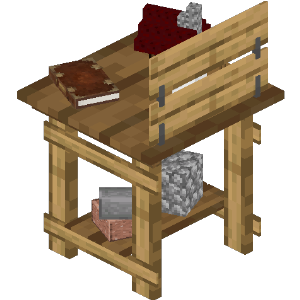
Recipe:
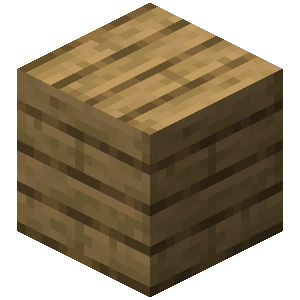
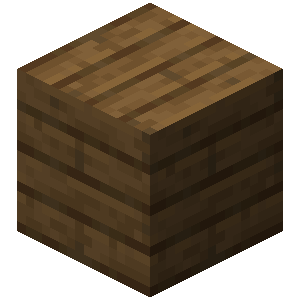
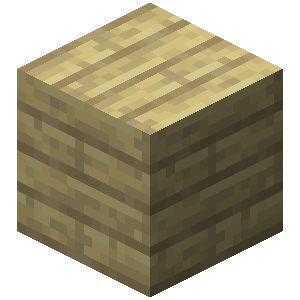
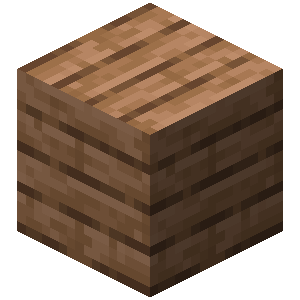
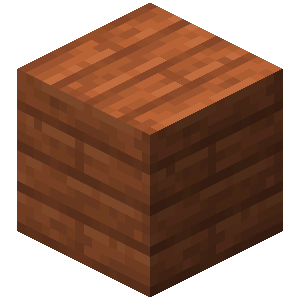
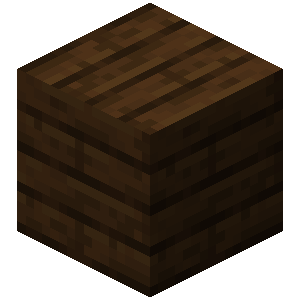


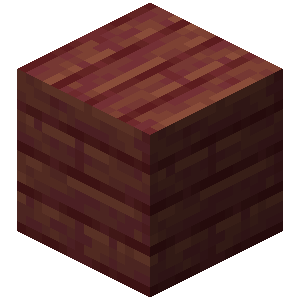

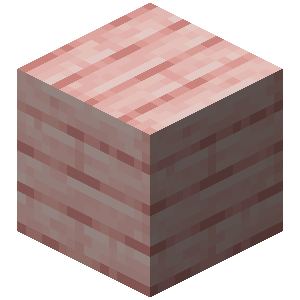









Research: No research is required for this building.
Worker: Builder
























Builder's Hut
Recipe:
Research: No research is required for this building.
Worker: Builder
Builder's Hut
Recipe:












Research: No research is required for this building.
Worker: Builder
Builder's Hut
Recipe:
Research: No research is required for this building.
Worker: Builder
Builder's Hut
Recipe:
Research: No research is required for this building.
Worker: Builder
Builder's Hut
Recipe:
Research: No research is required for this building.
Worker: Builder
Builder's Hut
Recipe:
Research: No research is required for this building.
Worker: Builder
Builder's Hut
Recipe:
Research: No research is required for this building.
Worker: Builder
Builder's Hut
Recipe:
Research: No research is required for this building.
Worker: Builder
Builder's Hut
Recipe:
Research: No research is required for this building.
Worker: Builder
Builder's Hut
Recipe:
Research: No research is required for this building.
Worker: Builder
Builder's Hut
Recipe:
Research: No research is required for this building.
Worker: Builder
Builder's Hut
Recipe:
Research: No research is required for this building.
Worker: Builder
Builder's Hut
Recipe:
Research: No research is required for this building.
Worker: Builder
Builder's Hut
Recipe:
Research: No research is required for this building.
Worker: Builder
Builder's Hut
Recipe:
Research: No research is required for this building.
Worker: Builder
Builder's Hut
Recipe:
Research: No research is required for this building.
Worker: Builder
If changes are needed or you think there is content missing, feel free to edit this page or submit an issue for us to make edits. - MineColonies Wiki Team